Sunday, September 5, 2010

Free Circut Cartridge Give-away

Hey crafty bloggers- check out this link to enter the competition for a free circut cartridge for birthdays and other party die-cuts! Fav-Crafts offers lots of cool directions for projects, books, and freebies each week. You can sign up for their enewsletter!

http://www.favecrafts.com/sweeps/Sweet-Treats-Cricut-Cartridge-Giveaway

Enjoy and have some fun in your spare time! :-)

Saturday, July 31, 2010

BP14-Part 3 & Final Risk Free Activity


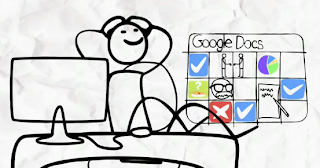
Google Docs-Great tool for collaboration

Awesome learning experience this week. As I finish up this risk-free activity, I am amazed at how easy it is to create forms, spreadsheets, and drawings. In addition, you can simply insert images and photos easily from your computer or the Internet. Having this Web 2.0 tool to use, and training others how to use all of the features, will make it much easier to help trainers, teachers and students in any educational setting.

Using Forms for Research Data . . .
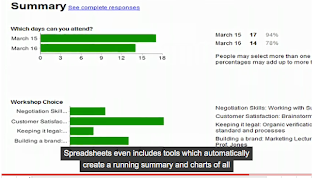
There are several features that I will be using for my Action Research project. The first will be spreadsheets with forms to compile my data. What a wonderful option this will be and the time it will save should be great. Just think- no more waiting for email replies or survey answers where I would have to manually enter and calculate all the data into usable formats- Google Forms can do that for me.

Hurray for anything that will make the research
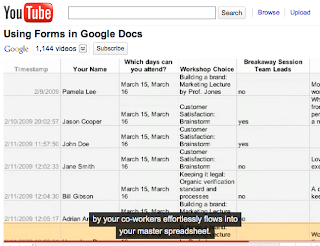
process and data gathering quicker and easier. I use spreadsheets all the time to organize information and for preparing lesson materials. Can't wait to put together my research documents using Google Docs and the many tools available.

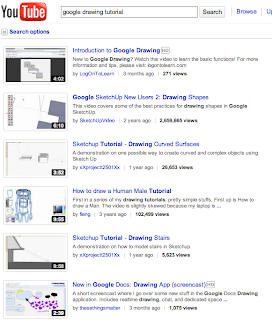
As I searched for tutorials and training materials to use when learning how to use all of the tools in the suite, I located several great examples at lynda.com and YouTube. The videos were all simple and provided easy instructions on how to use the various menus and actions available in Google Docs.


Drawings add visual interest . . .

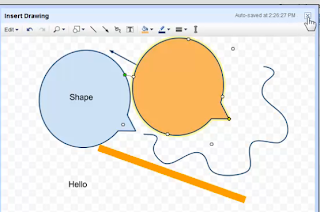
One of the tools within this suite is the drawing tool. Using the various shapes and lines along with text to create simple drawings can add interest and supplemental images to presentations and other types of documents. The process is very easy; using the drawing tools, changing colors, adding text and resizing or groups and aligning various parts of a drawing can be done quickly without a lot of extra training to master the menu options.


Adding images from the Internet . . .

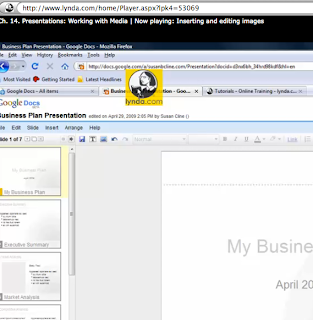
Another task that most computer users and designers do frequently is to locate images from their computer or Internet for use on documents and in presentations. The process can sometimes be tedious but Google Docs offers another method for taking care of this process that makes it very fast and easy. All you have to do is find the image on the Internet that you want to use such as a logo or photo, and then drag that image to the tab of your document where you want to insert the image. No more saving or copy and paste of the image before you can use it. The drag and drop procedure makes this task so much easier thus cutting out another stressful action that takes precious time away from more important tasks. If you want to see more, just view the training video on inserting images under Google Apps Essentials by clicking on the following link for lynda.com
Well loyal groupies . . . thanks again for following my progress this week on my blog. I found so much valuable material and great training videos to watch that will help me learn even more. I plan to use many of these wonderful collaboration tools in the Google suite throughout the remainder of my Full Sail program and for my Action Research. Sure will make my life less stressful and I hope it will do the same for you!
(Editorial note: all screenshots by Kathy Valunas from training videos at lynda.com, Google Docs, and YouTube.)

Until next time, LILLI Ghostraven (aka Kathy Valunas) signing off . . .


Wednesday, July 28, 2010

BP13-Part 2 Risk Free Activity


Exploring Google Docs

So here we are again; progress is slow but I am beginning to get a handle on how this tool works. I think once I figure it all out I will like what it has to offer. I hear so many teachers and the other students in the FSO program just loving this great tool so maybe I will eventually feel the same way. I do see a lot of benefit to this especially for the ability others will have as collaborators and editors.

The first day or so, I spent looking at templates and trying to edit a few for presentations but that got to be horrible. Nothing seemed to work and I knew I would have to spend some serious time working through tutorials and watching some training videos.

Today, I tried the quick budget spreadsheet template (screenshot shown above) and found that to be relatively easy to change for what I needed. I liked the fact that you can customize the columns and the template includes formulas for some data charts for comparison.

The screenshot example to the right, is the edited template that I am calling Planning Budget Worksheet. This edited version is a starting point for a student publication class that creates the school yearbook. Each year they have to try and determine what to do and how to set up a budget based on books sold, ads sold to help support the cost of publishing the book, and their expenses.

If they have a document where they can collaborate on a working budget and make changes based on actual sales and expenses, I believe this would be a tremendous help for those students.

Using this template has been a big jump for me in becoming more familiar with google docs. I am hoping to try something different after viewing some additional training videos and reading through some tutorials on lynda.com

Well thanks for hanging out with me today and reading about my progress. I promise to have more to share and even better results within the next few days. Keep watching and come back to my blog again to see what else I have discovered!

TTYL my loyal groupies!

Monday, July 26, 2010

Week 4-Risk FREE Learning Activity

Google Docs: Drawings and Presentations
WOW! What a great opportunity to spend time getting to know one of the Web 2.0 tools we have been exploring throughout this class. Looking at our options, and since we will be using more Google Docs (drawings and presentations) in our next course, I decided to spend some time getting better acquainted with the great features in this tool.

My first inclination is to explore how to use some different templates. Then I want to try to create a drawing and a simple presentation using one of the templates. Because I love to design my own backgrounds and templates that are customized to what I need, I will first try creating something using one of the available templates for making a drawing and for making a simple presentation. If I have time, I will try to design a template of my own to share.
As this life-long learner experiments with some of these great features, I will keep you posted as to my progress. Check back often this week to see how I am doing.


Saturday, July 24, 2010

BP11-OMM-Zotero

Another One Minute Moment brought to you by LILLI Ghostraven your hostess with the mostest or as my fellow FSO classmates know me- Kathy Valunas. Today's commercial features Zotero- a wildly fun and easy add-on extension for Firefox to take some of the stress out of conducting research. Enjoy!

BP10-MyComments: Crystal Davis shares Platogo


What a great find that Crystal Davis shared on Flash gaming using Platogo. Check out my comments on her blog by clicking on this link.

BP9-MyComments: Pamela Hickman shares Moodle


Enjoyed reading about how Pam plans to use Moodle with her business classes. Click on this link to read my comments on her blog.